Upload Inputs and Convert to Markdown
What this chapter covers
PAVE keeps input documents such as specifications under Inputs/ and writes their Markdown conversions under Wiki/raw/. This chapter explains how to import a PDF on the Files tab, how to convert it with Convert to Markdown, where the conversion output lands and what it is called, and how to view the converted Markdown.
- Audience: users who have created a workspace and want to add their first input document
- Prerequisites: the workspace created and opened in the previous chapter, and a specification PDF
Conversion never happens automatically. Importing a file does not start the Markdown conversion; you have to click Convert to Markdown in the toolbar yourself. A file that has not been converted is visible on the Files tab but invisible to the Ingest in the next chapter.
Put the PDF into Inputs
- In the FILE EXPLORER toolbar of the Files tab, click the second icon from the left, ① Import Files (tooltip Import Files — Copies them into Inputs/.). A file dialog opens.
- Select the PDF and confirm. The file is copied into
Inputs/. You can select several files at once; to import a whole folder, use the first icon, Import Folder. - Instead of the dialog, you can also drag a file from the OS file explorer onto the empty area of the tree, which puts it into
Inputs/. Dropping it on a folder row puts it into that folder.
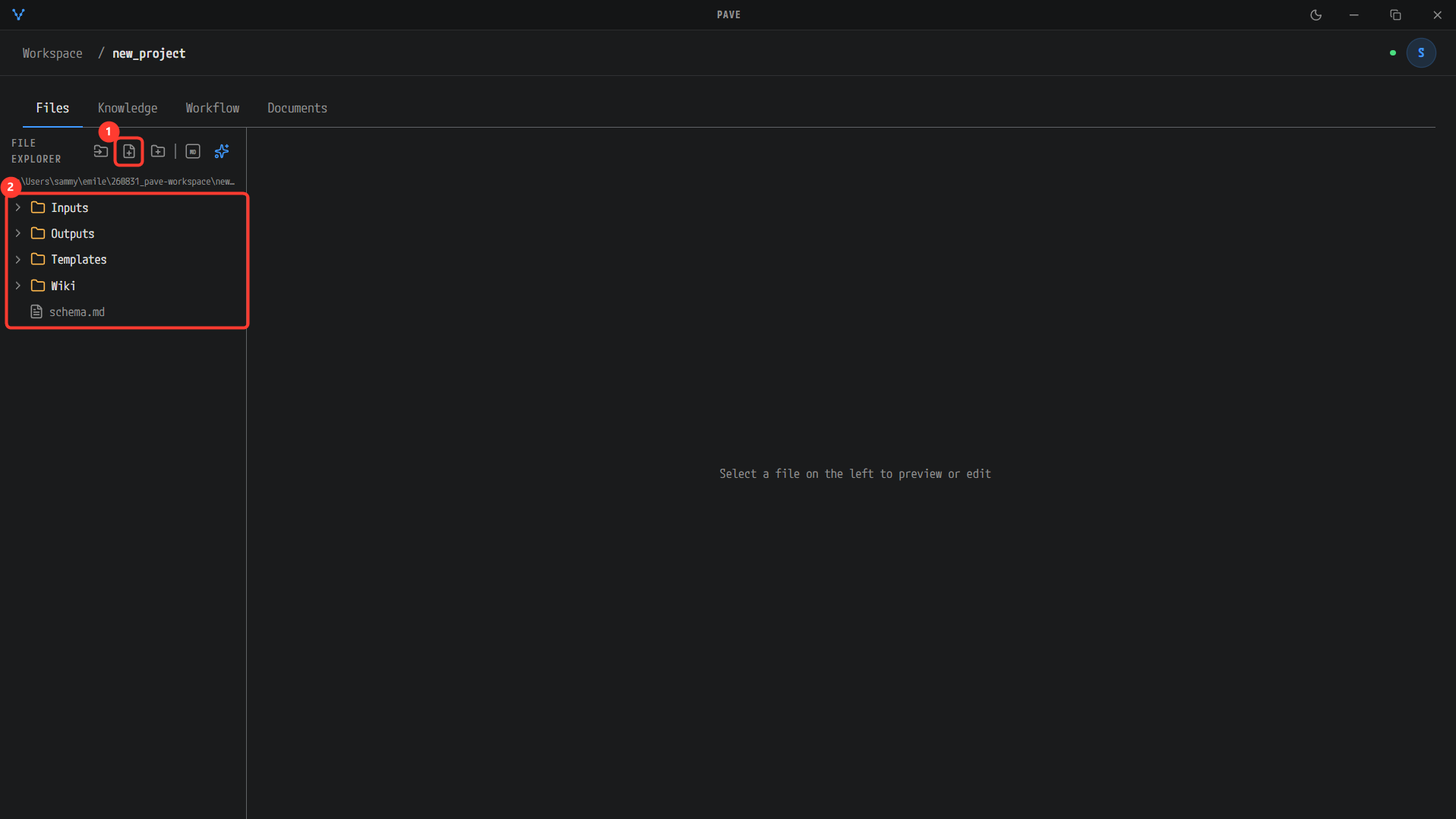
The Files tab of a new workspace. ① The second toolbar icon from the left is Import Files, and ② the tree still contains only Inputs, Outputs, Templates, Wiki and schema.md.
The title of the file dialog is shown in Korean (
입력 파일 임포트) in the current version. There is no limit on the size of the files you can import.
- The imported PDF appears ① under
Inputs/. Clicking its row opens a preview on the right with the View converted md, Open externally and Save buttons above it.
Convert to Markdown
- In the toolbar, click the ② Convert to Markdown icon (the MD badge) to the right of the divider.
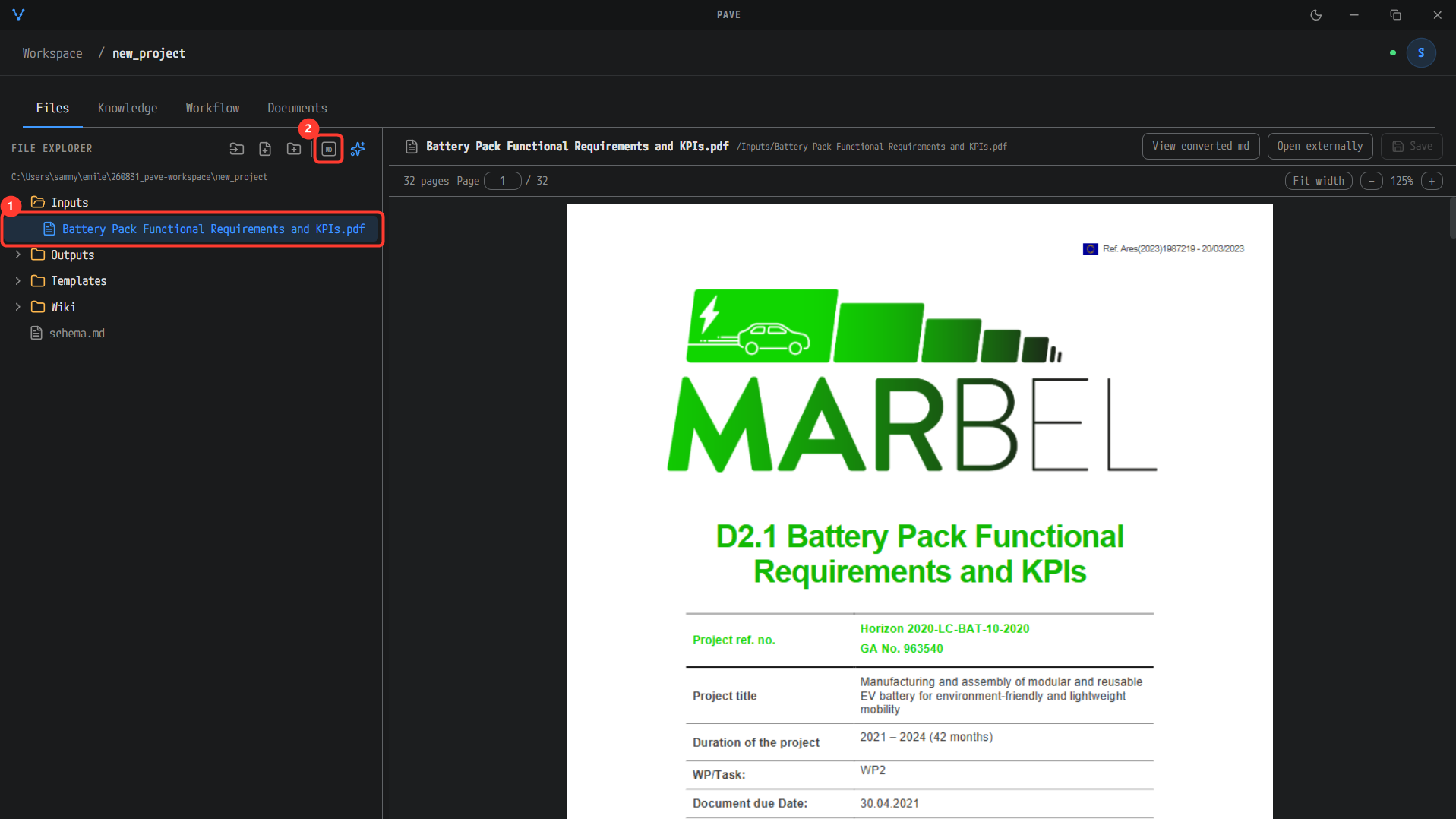
Selecting the imported PDF (Battery Pack Functional Requirements and KPIs.pdf) under ① Inputs/ opens a preview on the right. ② The MD badge icon in the toolbar is Convert to Markdown. View converted md above the preview is for after the conversion.
- When the conversion starts, a progress line of the form
Converting <file name> 0/1 · 0:02appears above the tree.0/1is the number of files converted so far out of the total, and the time is the elapsed time since the start.
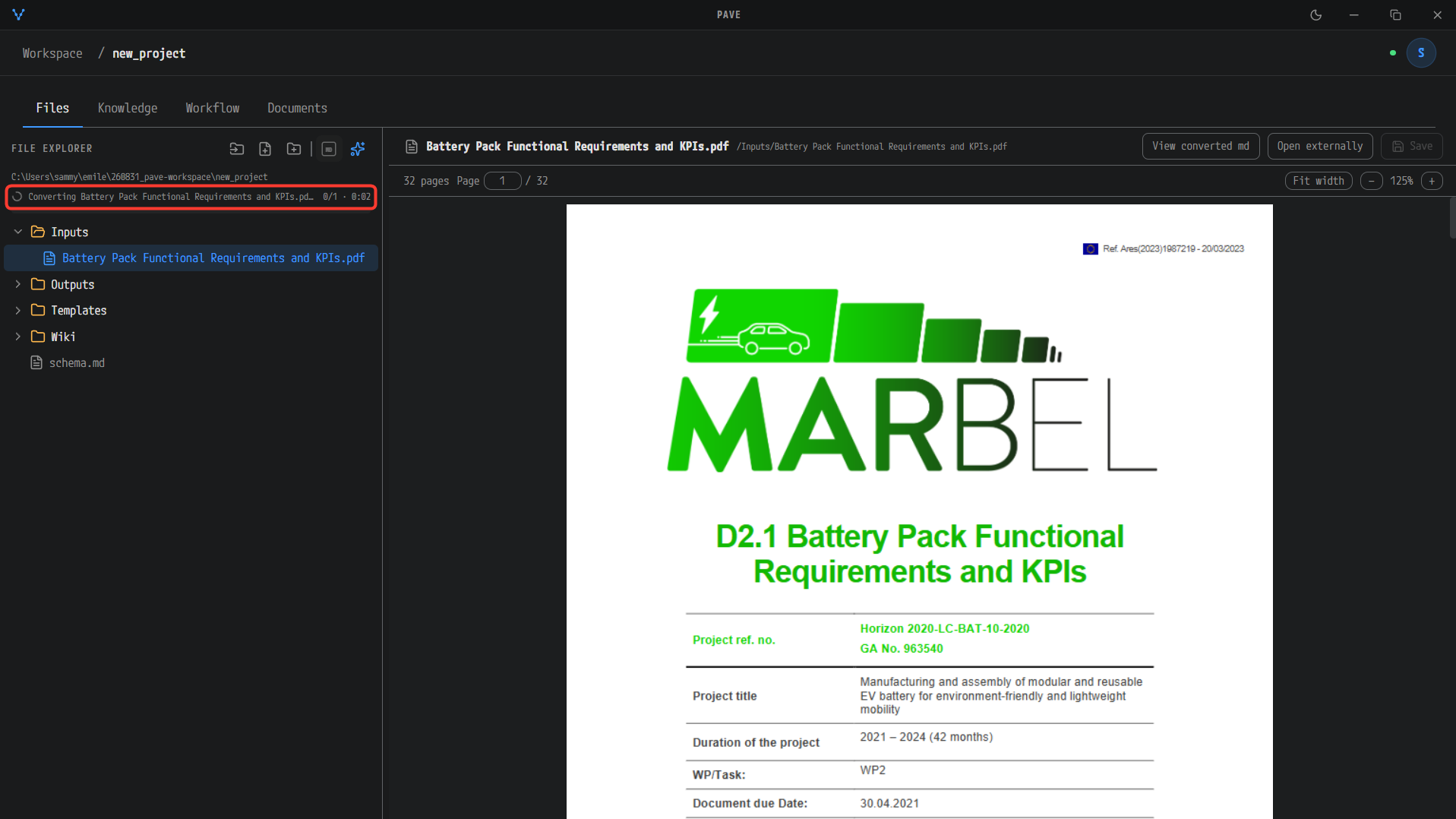
The progress line above the tree, Converting Battery Pack Functional Requirements and KPIs.pd… 0/1 · 0:02: 0 of 1 file done, 2 seconds elapsed. The Convert to Markdown icon is disabled while it runs.
- When it finishes, a toast such as Converted 1 appears (with
, N failedand, N unsupportedappended if some files failed or are unsupported).
Conversion covers the whole tree and cannot be cancelled. It converts every convertible file loaded in the tree (pdf, docx, pptx, xlsx, xlsm, md), not just the selected one. While it runs, the button is merely disabled; there is no way to stop it.
Check the conversion output
The output lands in the folder Wiki/raw/<document>/ (Wiki/reference/<document>/ for files placed under Inputs/reference/).
| File | Content |
|---|---|
<document>.md | The converted document. Produced for every format. |
images/ | The extracted figures. Created only when there is at least one image. |
_conversion.log | Warnings, any [INFO-INSUFFICIENT:…] marks, and a final status: done or status: failed line. |
<document>.parse.json, <document>.enrich.json | Capture sidecars (before and after enrichment), PDF only. |
- In the tree, expand
Wiki→raw→<document>and click ①<document>.md. View converted md above the PDF preview opens the same file (before a conversion it shows No converted markdown found — run Convert first). - Switch the view with ② Rendered / Split / Source at the top right. The default is Rendered, and it goes back to Rendered whenever you select another file.
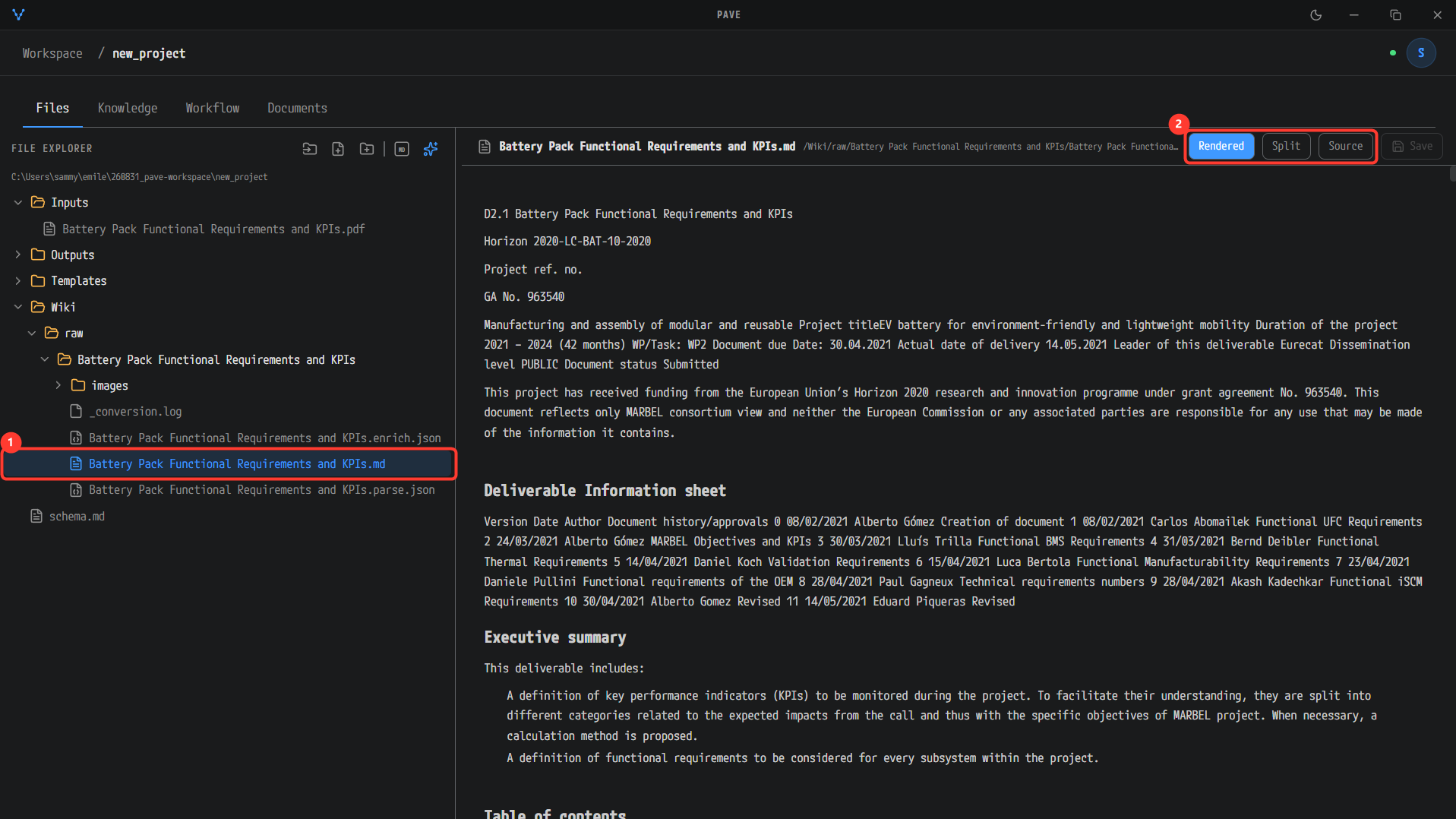
① images/, _conversion.log, .enrich.json, .md and .parse.json have appeared under Wiki/raw/Battery Pack Functional Requirements and KPIs/, and selecting the .md shows the rendered document on the right. ② Rendered / Split / Source switches between rendered, side-by-side and source views.
Next steps
The converted Markdown is ready under Wiki/raw/. Go to Build the Knowledge Base to run Source Ingest on it.